ElBruno.OllamaMonitor




A tiny Windows system tray tool to monitor your local Ollama runtime.
Quick visual feedback about your Ollama status, resource usage, and models—right from your Windows system tray.
What’s New
- Added optional Mini Monitor display controls: Show CPU, Show Memory, and Show Ollama logs — disabled by default, configure from Settings
- Collapsible logs panel in Mini Monitor shows the last 5 lines of Ollama server output in real-time
- All mini-monitor toggles apply live (no restart needed)
- Added full model lifecycle controls in the monitor UI: Stop selected, Stop all, Pull, Remove, Copy
- Added Start Ollama action from the main window
- Upgraded unload logic with strategy support: Auto / Cli / Api
Autostrategy now prefersollama stopfor local endpoints and API fallback for remote endpoints- Added verification after stop requests to confirm models are no longer running
- Added automated tests for unload strategy behavior and new settings defaults
What It Does
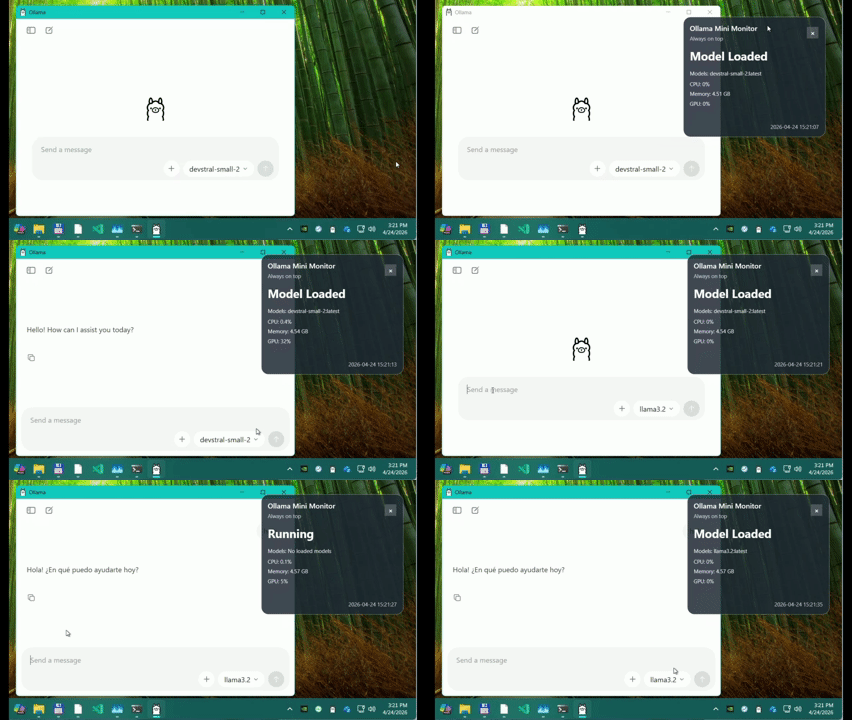
ElBruno.OllamaMonitor sits in your Windows system tray and tells you:
- Is Ollama running? A glance at the tray icon shows you the status.
- Is a model loaded? See what’s currently active.
- How much CPU, RAM, and GPU is it using? Real-time resource metrics from the Ollama process.
- Any errors? Get instant visual feedback if something’s wrong.
- Need model actions? Stop running models, pull new models, remove old ones, and copy model tags from the monitor window.
Perfect for:
- Local AI developers who need quick visibility into Ollama
- Demo presenters who want to know resource impact in real-time
- Anyone running large models locally who’s curious about the overhead
Demo
Installation
Via NuGet (Recommended)
dotnet tool install --global ElBruno.OllamaMonitor
Then launch anytime:
ollamamon
From Source
git clone https://github.com/elbruno/ElBruno.OllamaMonitor.git
cd ElBruno.OllamaMonitor
dotnet build src/ElBruno.OllamaMonitor/
dotnet run --project src/ElBruno.OllamaMonitor/
Quick Start
- Launch the app:
ollamamonThe app starts minimized to the tray. Click the icon to open the details window or mini monitor.
-
Check your status: Look at the tray icon color—it tells you Ollama’s status at a glance.
- Configure (optional): See Configuration Guide for endpoint, refresh rate, and threshold settings.
System Tray Status
The tray icon color tells you the status at a glance:
| Color | Meaning |
|---|---|
| 🟤 Gray | Ollama is not reachable |
| 🟢 Green | Ollama is running, no model loaded |
| 🔵 Blue | A model is currently loaded |
| 🟠 Orange | A model is running or high resource usage |
| 🔴 Red | Error or Ollama unavailable |
Click the icon to open the full details window for diagnostics, or open the mini monitor from the tray menu to keep resource usage visible on top of other windows.
Features
- ✅ System Tray Integration — Runs in the background, always visible
- ✅ Visual Status Indicators — Color-coded icons for quick status checks
- ✅ Standard Details Window — A normal Windows window with minimize/close behavior that keeps the app in the tray when closed
- ✅ Mini Monitor Window — A semi-transparent always-on-top compact view for CPU, RAM, GPU, and model status
- ✅ Local Configuration — Customize endpoint, refresh rate, thresholds
- ✅ CLI Commands — Fully scriptable configuration
- ✅ GPU Metrics — Best-effort NVIDIA GPU tracking (if nvidia-smi is available)
- ✅ Copy to Clipboard — Quickly share diagnostics
- ✅ Manual Refresh — Force an immediate check
- ✅ Open Ollama URL — Quick link to the Ollama API
- ✅ Model Management — Stop selected/all models, pull/remove/copy models
- ✅ CLI-Based Stop Strategy — Uses
ollama stopfor local endpoints with API fallback support - ✅ Start Ollama — Trigger
ollama servefrom the UI for local setups
Requirements
- Windows 10 / Windows 11 (requires .NET 10 runtime, which can be downloaded from dotnet.microsoft.com)
- Ollama running locally (download from ollama.ai)
- .NET 10 SDK to build from source
Optional:
- nvidia-smi (NVIDIA GPU drivers) for GPU metrics
Configuration
See Configuration Guide for detailed setup, CLI commands, custom thresholds, and advanced options like remote Ollama monitoring.
Documentation
- Architecture Guide — How the app is built and organized
- Configuration Guide — Detailed configuration, CLI commands, and advanced setup
- Development Guide — Building from source, folder structure, debugging
- Publishing Guide — NuGet publishing with GitHub Releases and OIDC
- Troubleshooting — Common issues and solutions
- Release Notes — Version history and changelog
Promotional Materials
If you’d like to share this project:
- Blog Post — Full-length article
- LinkedIn Post — Social media ready
- Twitter Post — X-ready snippets
- Image Prompts — AI image generation prompts
License
This project is licensed under the MIT License — see LICENSE for details.
Support
Found a bug or have a feature request? Open an issue on GitHub.
Questions about Ollama? Check the Ollama documentation.
About the Author
Made with ❤️ by Bruno Capuano (ElBruno)
- 📝 Blog: elbruno.com
- 📺 YouTube: youtube.com/elbruno
- 🔗 LinkedIn: linkedin.com/in/elbruno
- 𝕏 Twitter: twitter.com/elbruno
- 🎙️ Podcast: notienenombre.com